Cloud Library
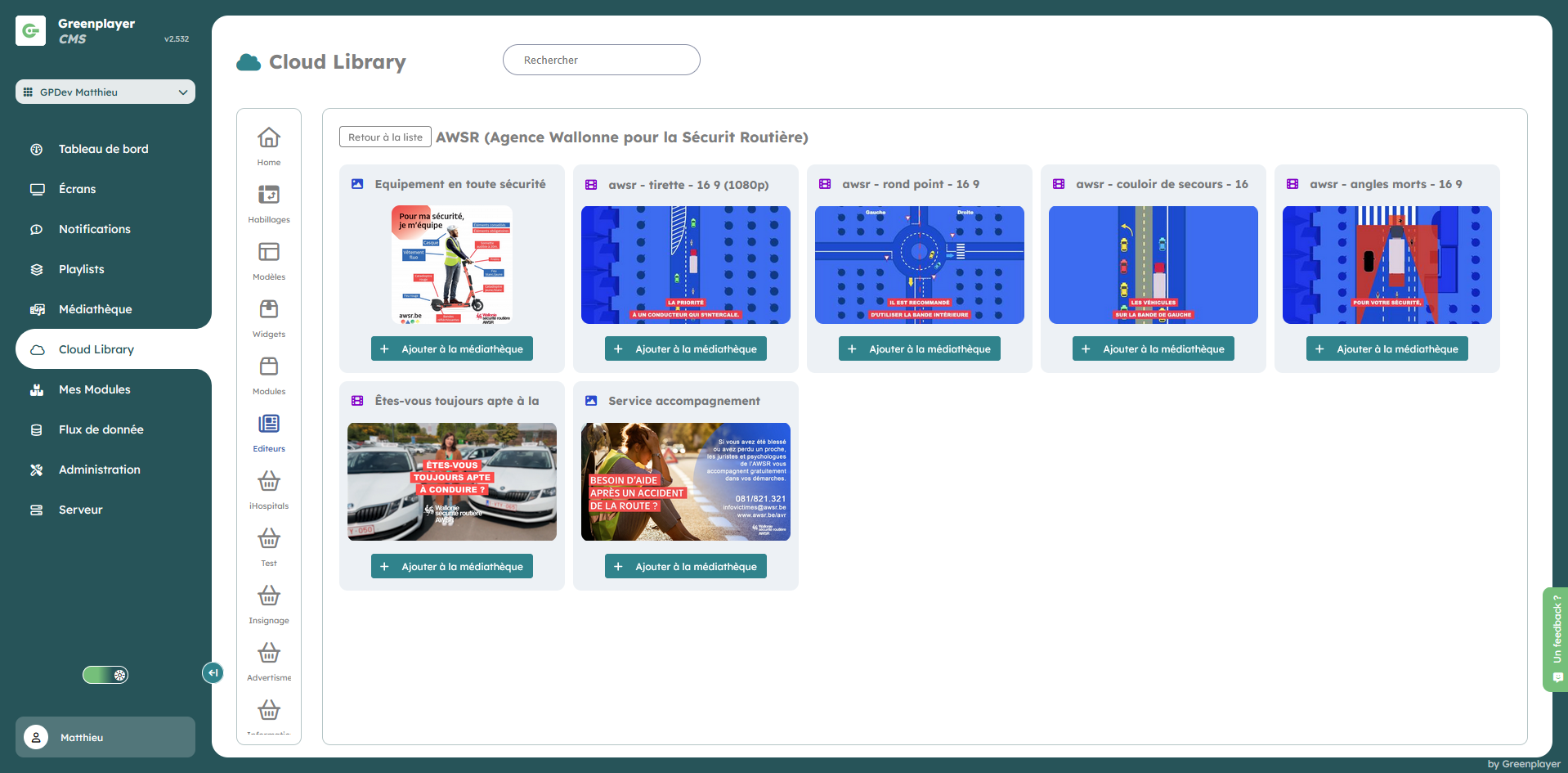
The Cloud Library module lets you access ready-to-use content (widgets, templates, skins, modules, publisher content) and quickly add it to your media library.
Page layout
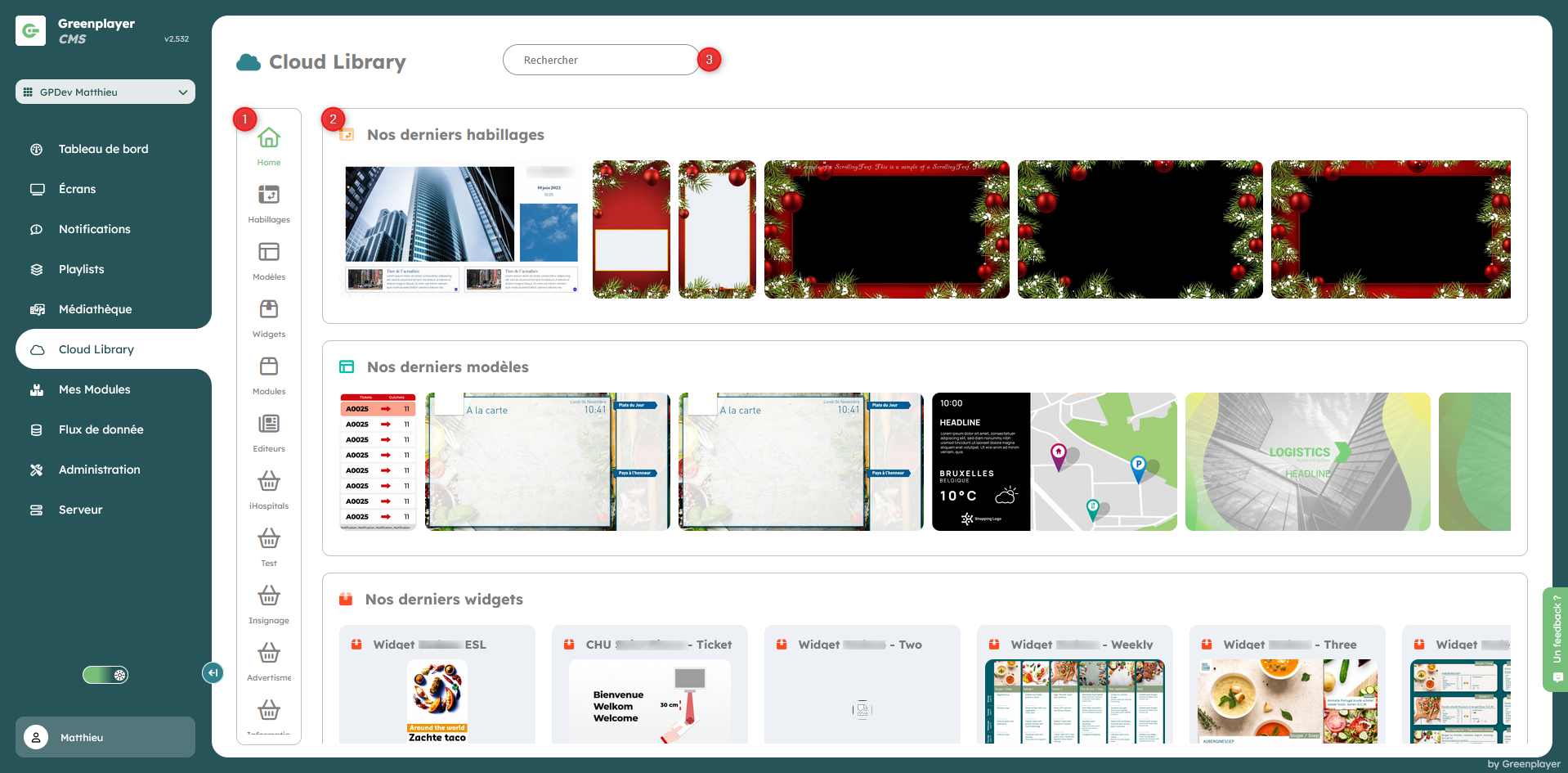
The page is divided into sections:
- A side menu listing all shared libraries you can access.
- A central area showing the media available for download.
- A search bar.
What is Cloud Library for?
Cloud Library is used to:
- discover new content
- search for specific content
Available categories
Depending on your account, you may see:
- Home (overview page)
- Skins
- Templates
- Widgets
- Modules
- Publishers
Home view
The Home view highlights the latest available content:
- latest skins
- latest templates
- latest widgets
- partner publishers
Search for content
Use the search field to quickly filter results.
Search takes into account:
- content name
- publisher
- description
Filter results
Depending on the selected category, filters may be available:
- content type
- related module
These filters help you target only relevant content.
Preview content
Before adding, you can open a detailed content sheet to check:
- visual preview
- content type
- main information
- description
Add content to the media library
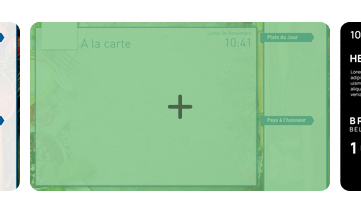
Click the media you want to add to your media library. A modal window opens.
Enter the name of your new media, the quantity to create, and the destination folder. Then click Add the media.
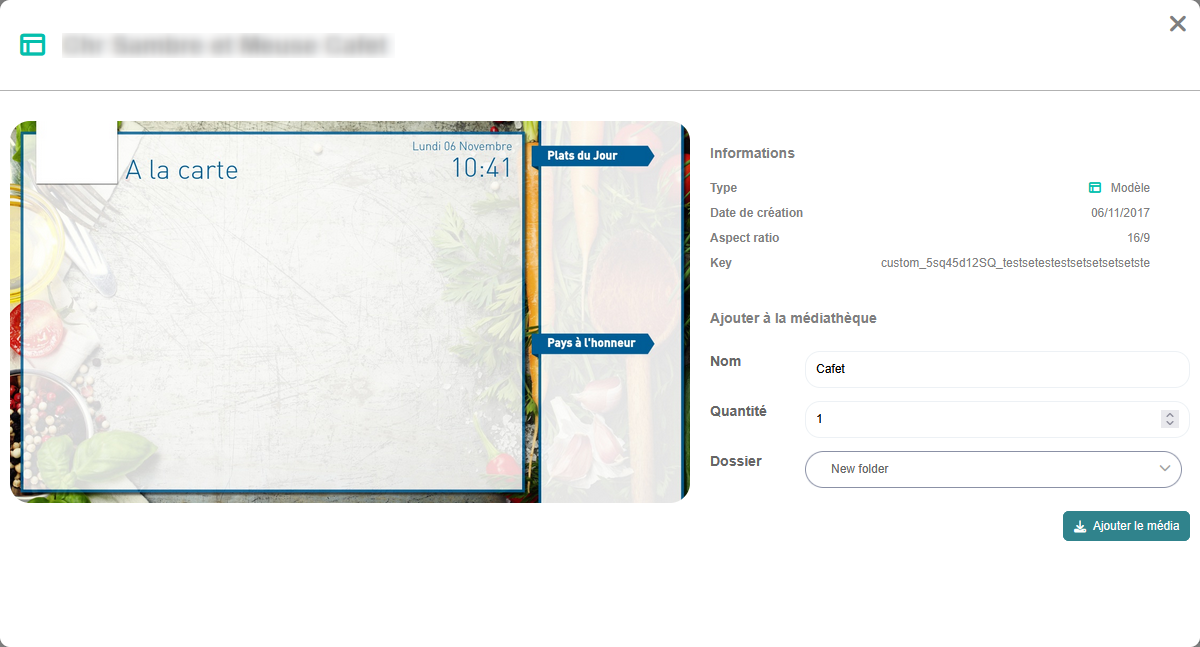
While the media is being downloaded into your media library, a loading indicator appears in place of the button.

Once the media is created, you can either open it by clicking Access the media or continue adding new media.

Publishers area
The Publishers category lets you browse available publishers and the media they provide.
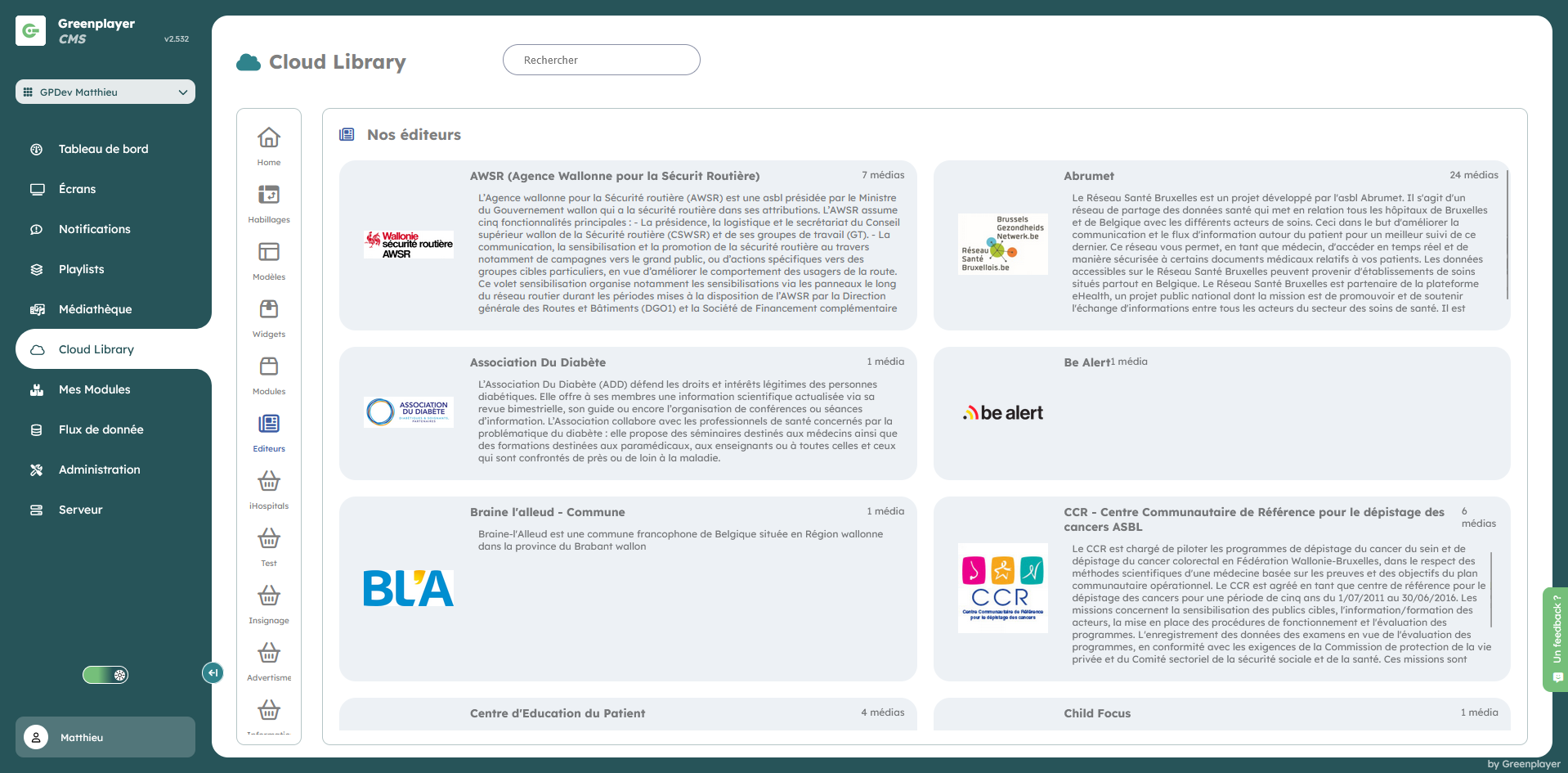
Adding media from a publisher works the same way as for other media.