Groups and organization
Organization by groups is at the core of Greenplayer.
Group management
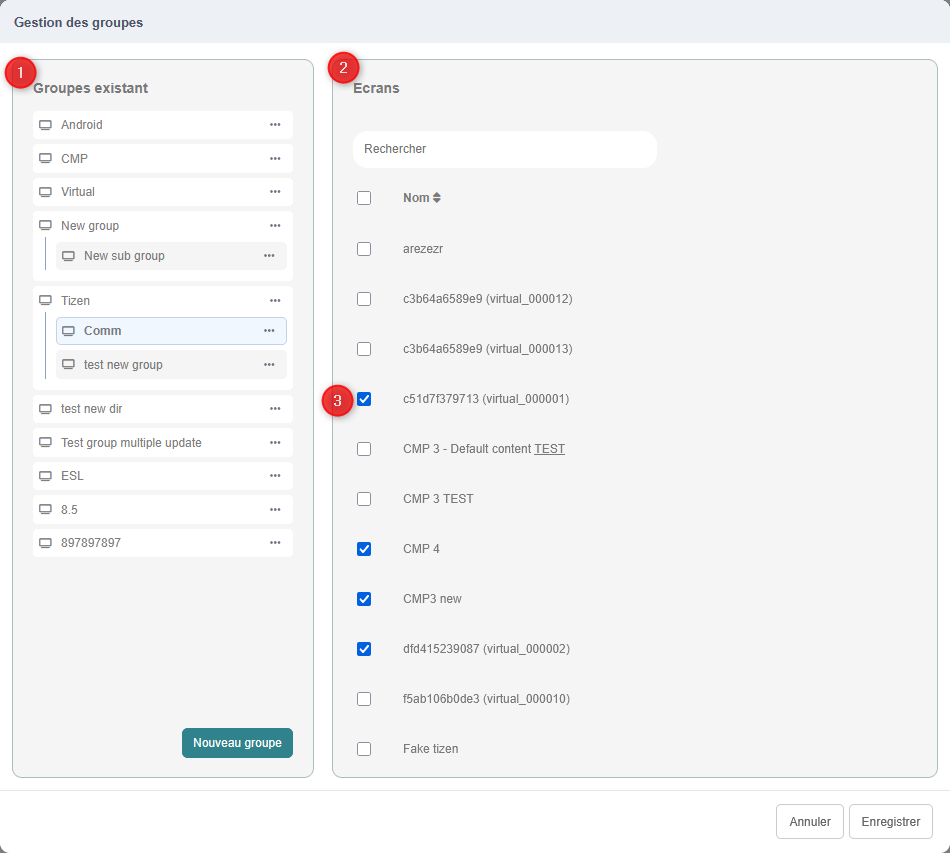
Click the Manage button to open a modal.
- The list of existing groups
- The list of screens
When you select a group, you can add/remove screens in that group by checking/unchecking the corresponding box (3).
Editing and deleting a group is done from its action button.

To create a new group, click New group (1), select its parent folder (2), then enter its name (3).
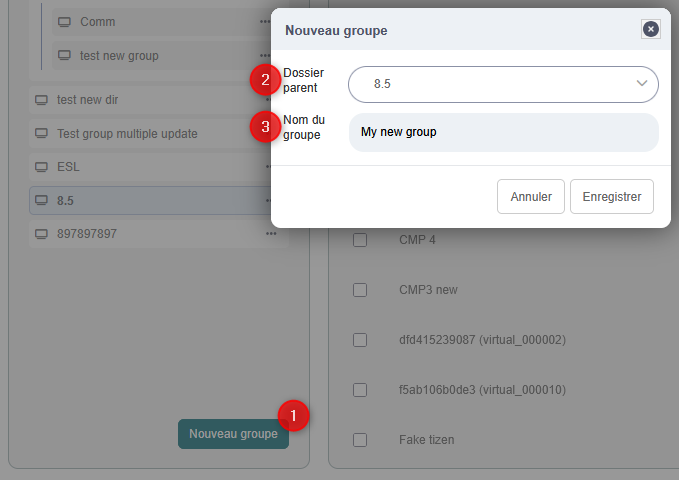
When you are done editing your groups (create / edit / delete / add screen), do not forget to click SAVE, at the bottom-right of the modal.
Navigating groups
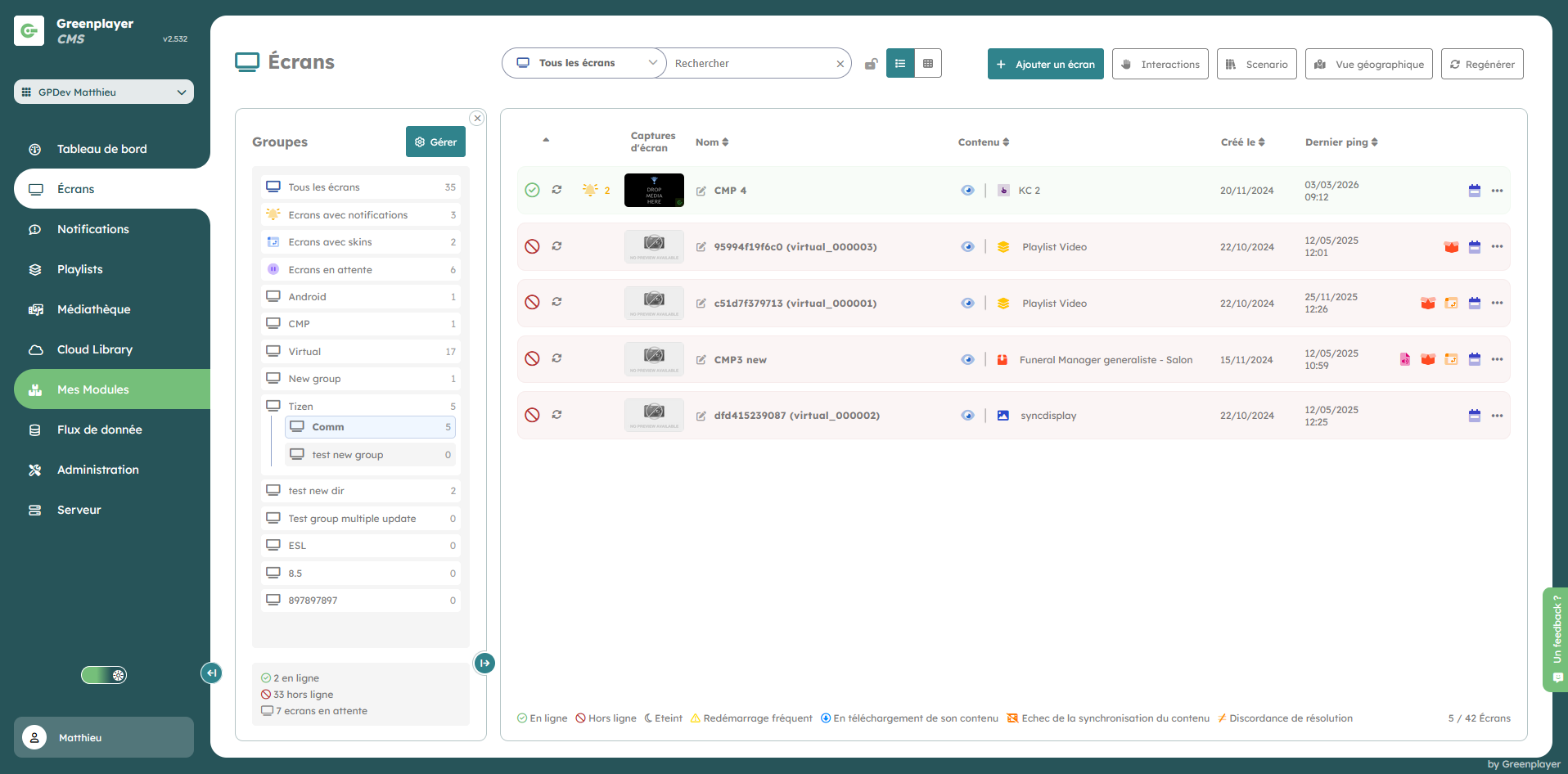
Groups are displayed as a tree. Just click a group name to see its subgroups and its screens.
Special groups
All screens
Includes all screens.
Screens with notifications
Includes all screens that have a notification banner.
Screens with skins
Includes all screens with a skin.
Screens with errors
Includes all screens with a download error for their content.