Screens
The Screens page lets you monitor and manage all players in your account.
Page layout
The page is divided into areas:
Groupstree columnList/Gridarea of screens- Top action bar
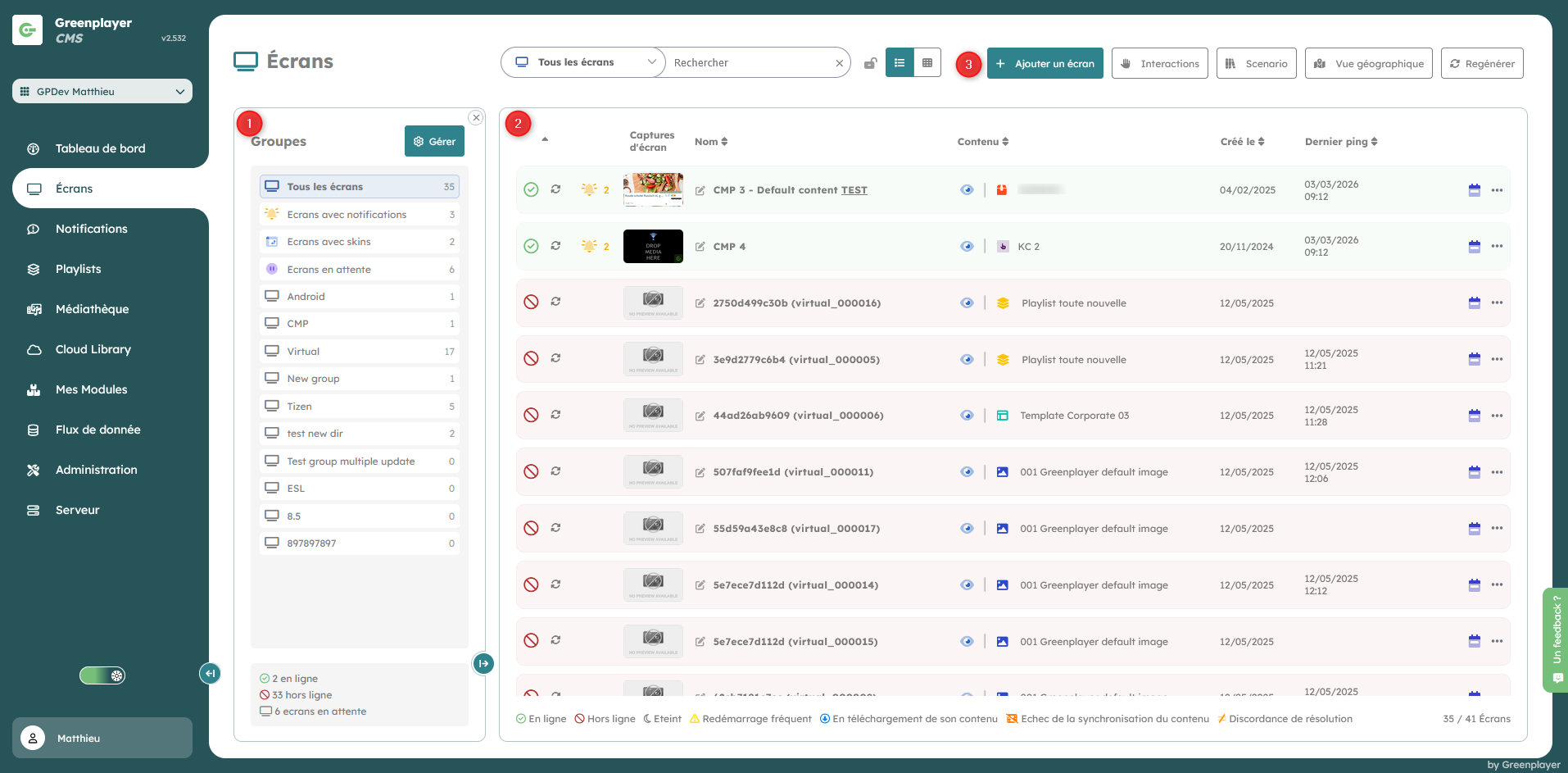
Main functions
Depending on your permissions, you can:
- Create screens
- Create and manage groups/subgroups
- Apply quick actions on screens
Screen information
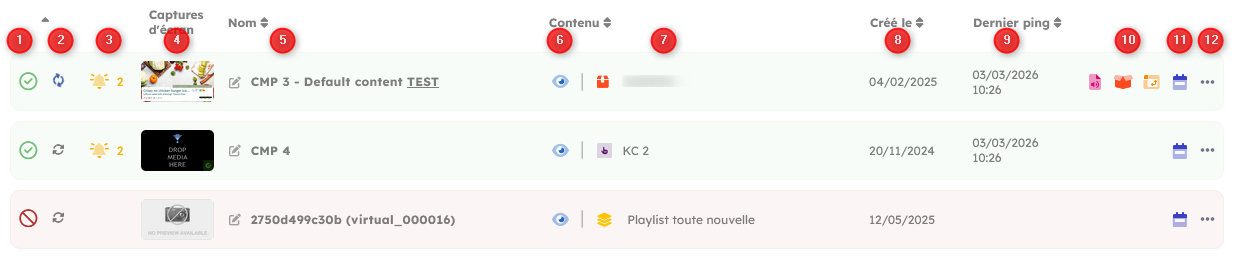
A screen row, from left to right, includes the following information:
-
Its status (1)
See the status page -
Needs regeneration (2)
If the double arrows are blue and spinning, the screen content has changed and must be regenerated. -
Notifications present (3)
-
Screenshot (4)
Latest screenshot reported by the screen -
Player name (5)
You can rename the screen via thepencilicon -
Preview button (6)
In a modal, simulates as closely as possible the content rendering on the screen -
Media currently playing (7)
Type and name of the media currently being broadcast -
Creation date (8)
-
Last ping date (9)
If the screen has never pinged yet, the date is empty -
Additional content present (10)
In addition to the current media, a screen can have several additional contents: an audio playlist, preloaded media, and a skin -
DPMS management (11)
Button to access management of the screen display schedule -
Action button (12)
Button to open the action menu
Best practices
- Organize your players by groups as soon as they are created.
- Give your players explicit names.