Absences
Prerequisites
You need to clearly distinguish two different concepts:
- Absence period
An absence period has a start and end date, as well as a period in the day (morning / afternoon / full day). It is used, for example, to indicate clinicians' vacations.
- Absence
An absence is either an adhoc or an occurrence that falls within an absence period.
For example, a clinician has reserved a room every Monday in March.
They are on vacation during the second week of March.
We create an absence period for them.
The Monday occurrence of that week therefore becomes an absence. This absence frees the previously reserved room.
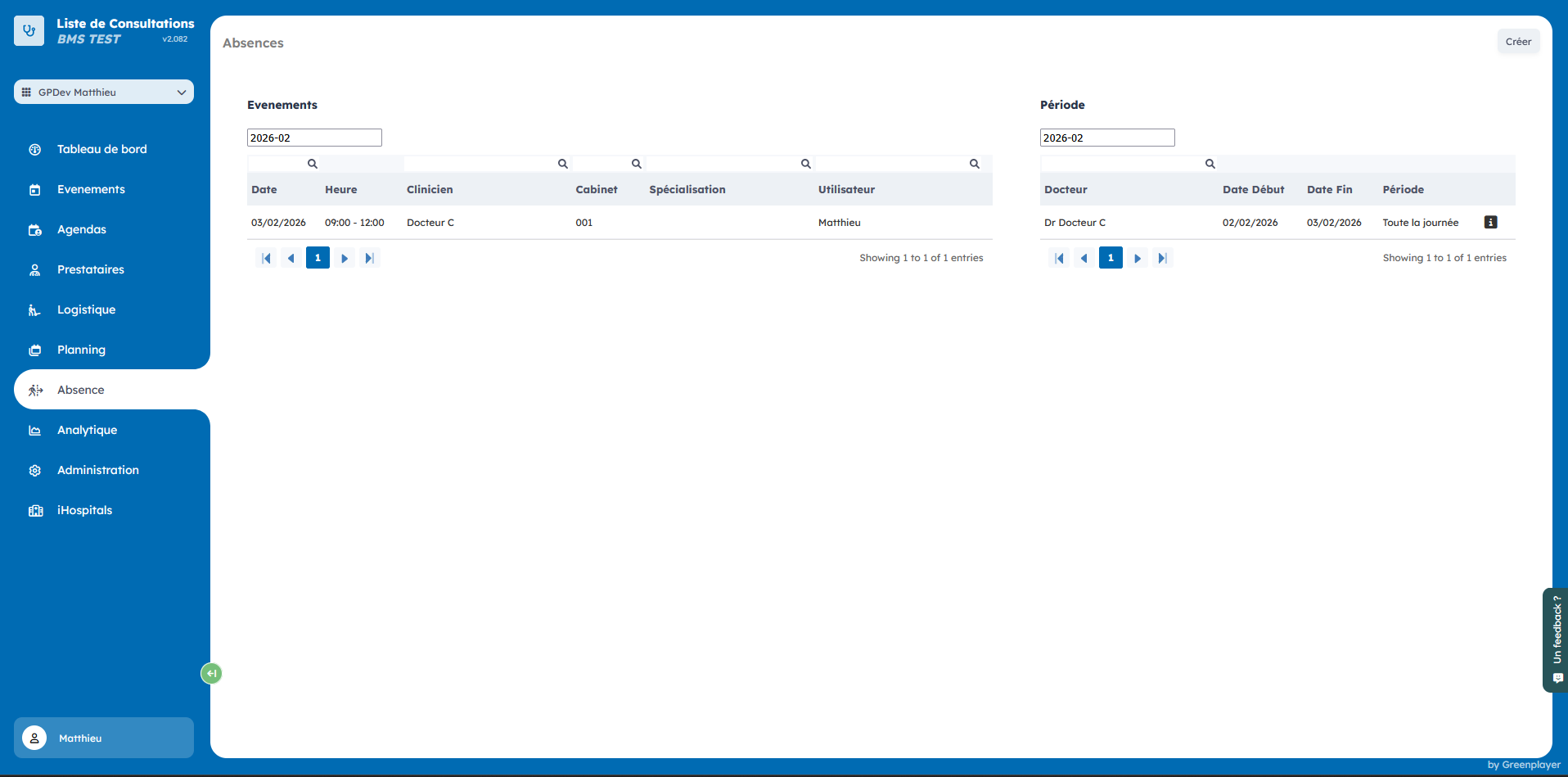
Absent clinicians are visible from the Absence tab. When a clinician is absent, their reserved rooms are freed and can be booked by others.
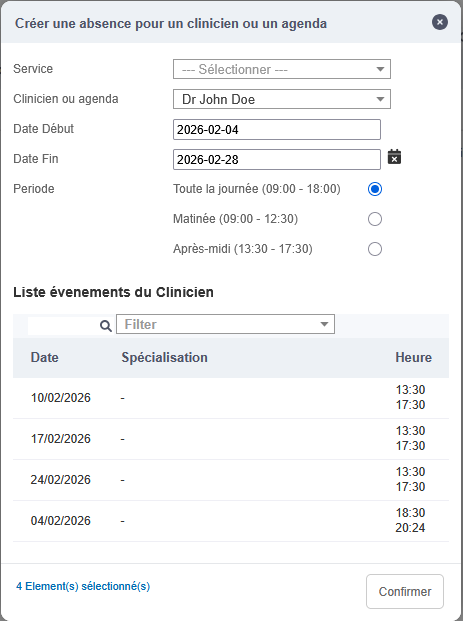
Create an absence period
Open the creation form by clicking Create in the top right. Then choose the clinician and their absence dates. All occurrences affected by these dates will appear under the form.
On confirmation, the clinician will be marked absent for the selected period. All their bookings during this period will also be marked absent. This frees the rooms for others.
Edit an absence period
Go to the details page of an absence period.
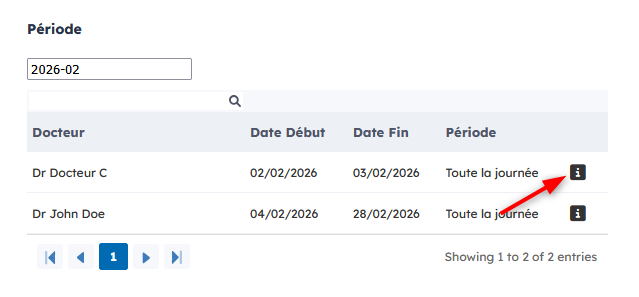
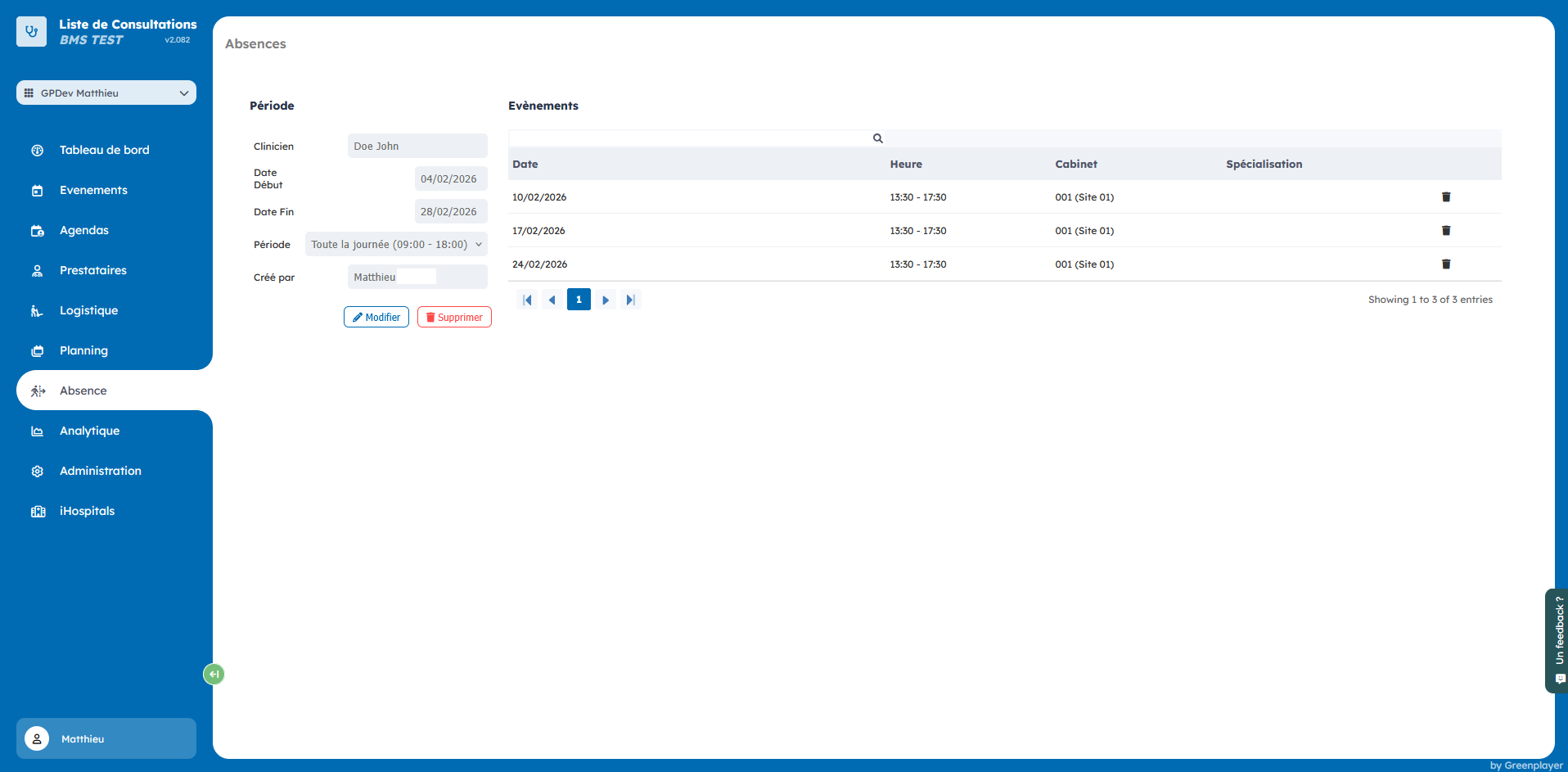
The left side lets you change the start and end dates of the absence, as well as the time of day.
When you save, the list of occurrences marked as Absent (right side) is updated.
Absences that fall outside the absence period are therefore removed and become normal events again (recurrence / adhoc).
If the room has in the meantime been booked by another clinician, a message appears inviting you to resolve this new conflict.

Delete an absence period
Go to the details page of an absence period and click "Delete".
The absences are then deleted as well. If, in the meantime, a room has been booked by another clinician, a message appears inviting you to resolve this new conflict.
Delete a single absence
It is possible to delete only one absence while keeping the absence period.
For example, a clinician is on vacation for 2 weeks (1 absence period) but still has to come in one day. In this case, you delete the absence for that day, which will block the room for them again.
Deleting an absence can be done either from the details page of an absence period (right side) or from the Absence page (left side).
If, in the meantime, the room has been booked by another clinician, a message will invite you to find another room for this absence to delete.
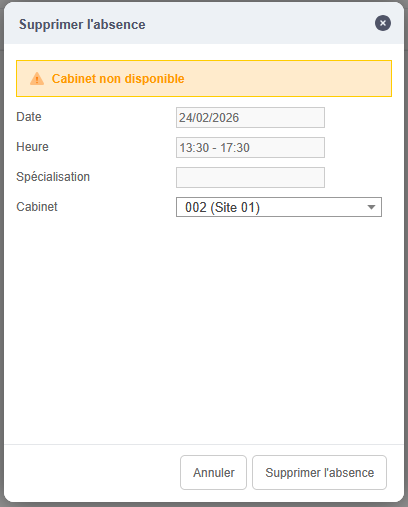
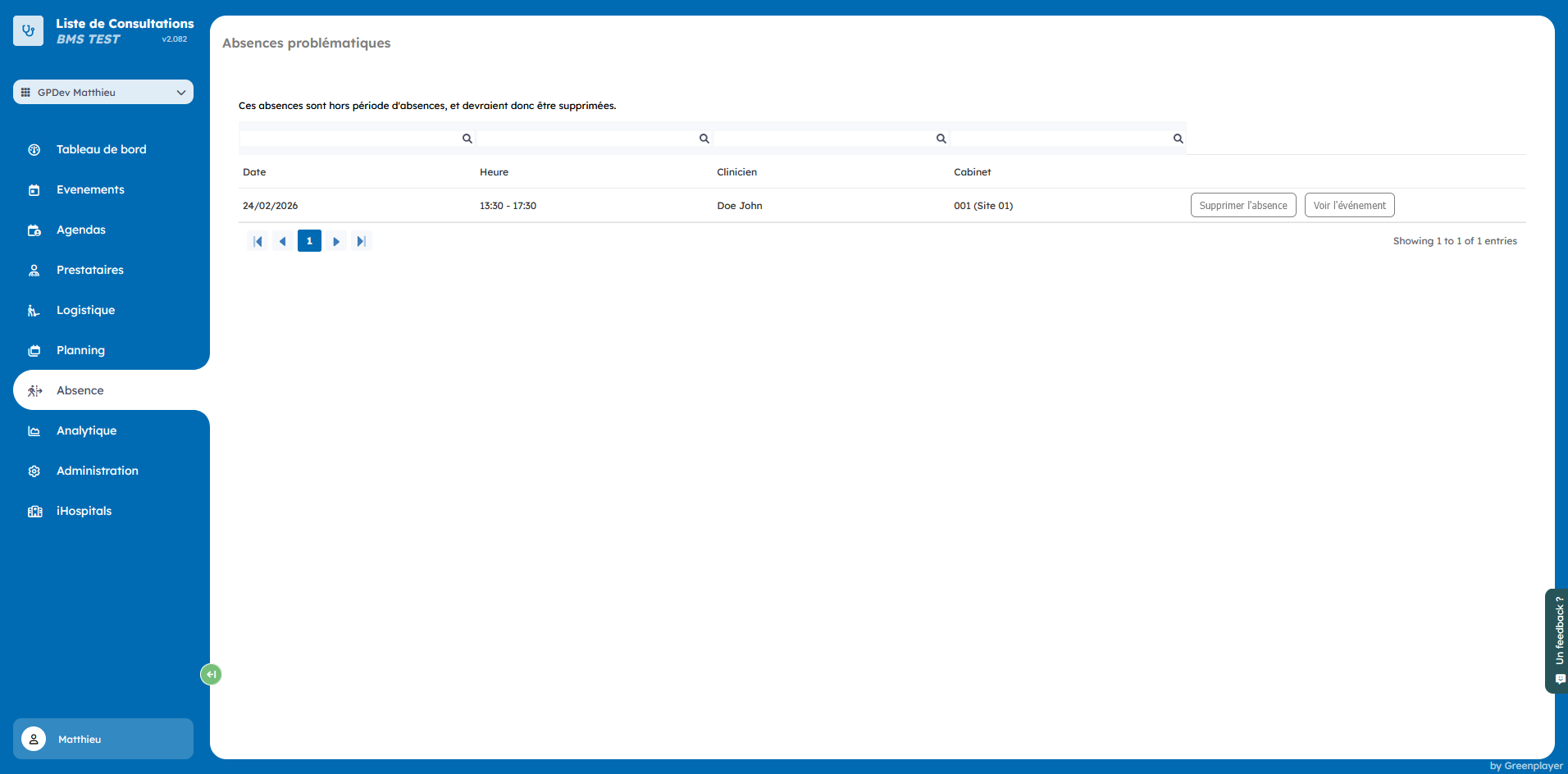
Problem absences
At the top right of the absences page there may be a red "Problem absences" button.
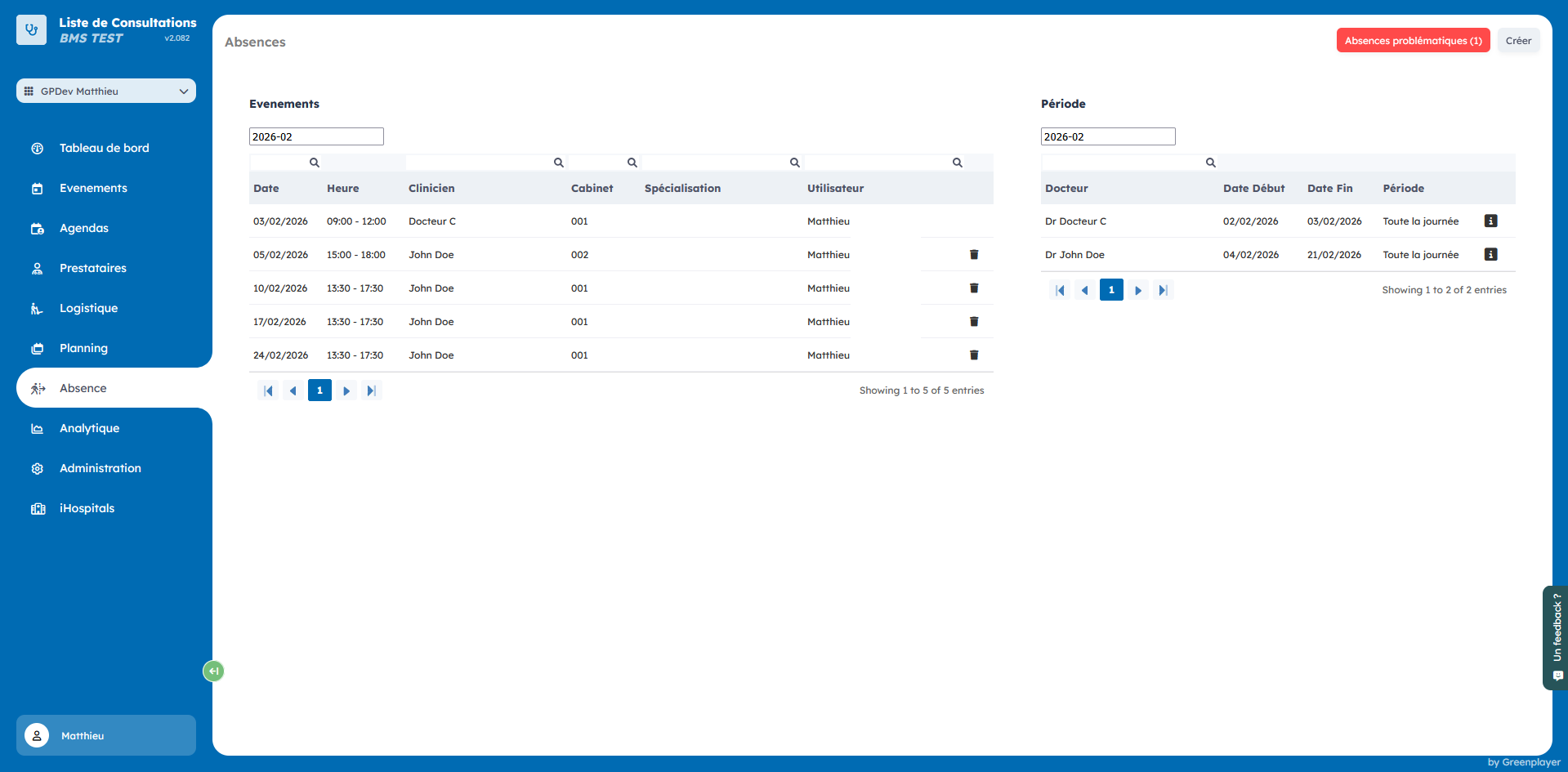
This page lists all absences that fall outside an absence period. These issues can occur when an absence period is deleted or modified.
To resolve the issue, click "Delete absence" and resolve the room conflict.