Desk management
On the Desks page, you have an overview of the different desks and consultation rooms.
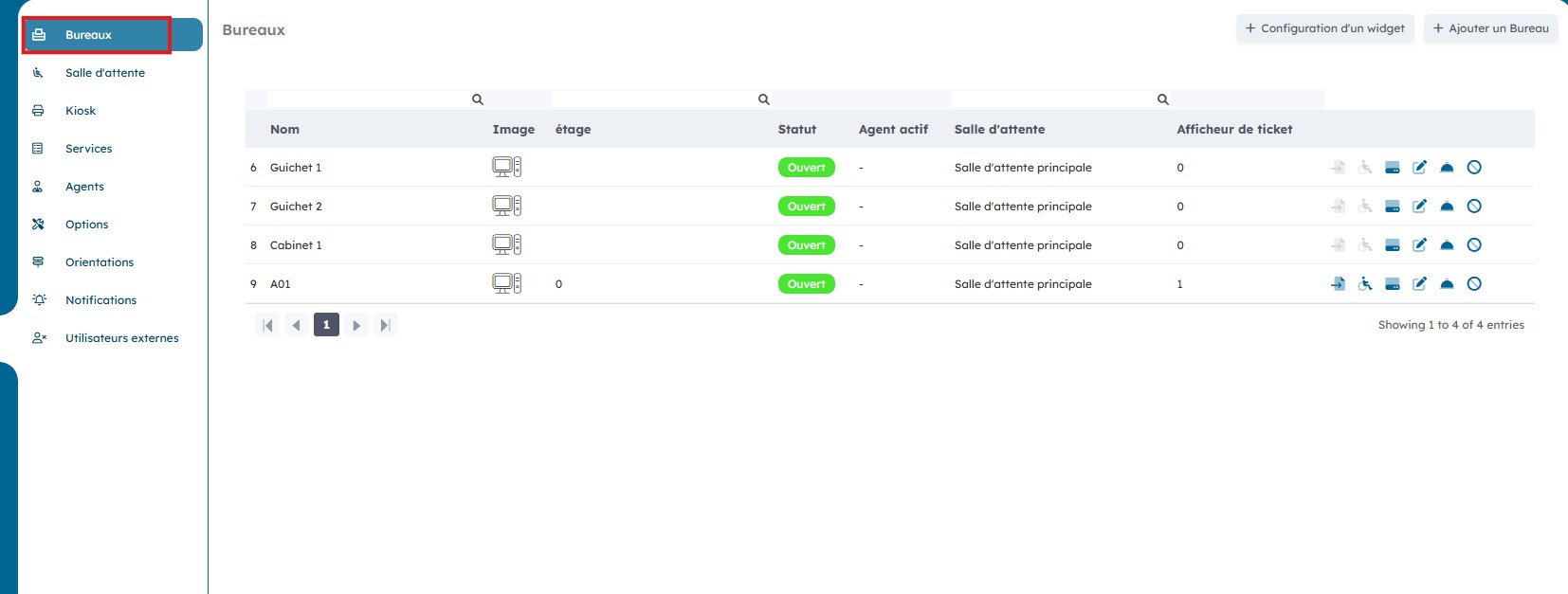
1. Create a new desk
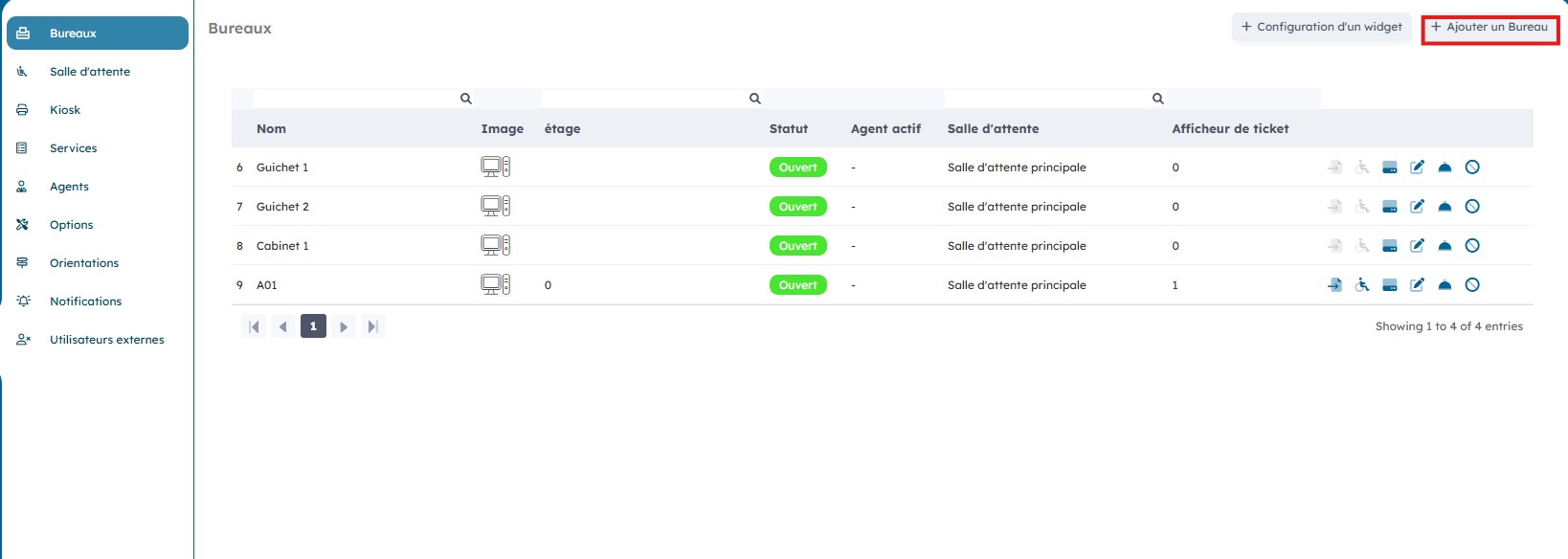
You can create a new desk by clicking "Add a desk".
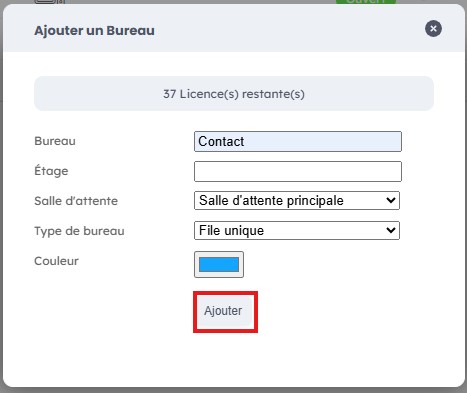
You can then create a desk by giving it a name, and specifying its floor as well as the waiting room it is attached to. Then click "Add".
2. Edit an existing desk
You can then edit, configure, and even delete the desks you created by clicking the "Actions" icons.
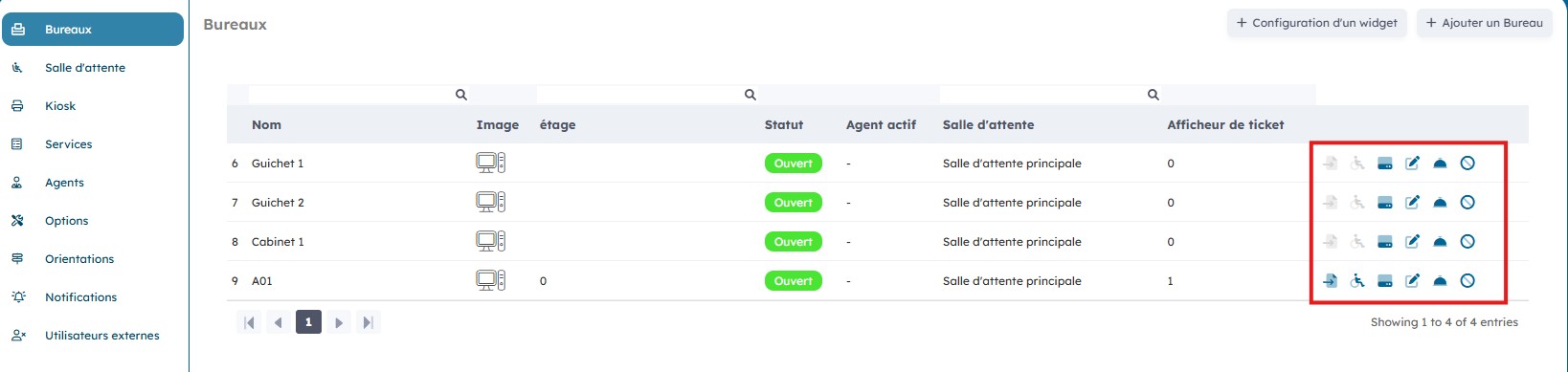
2.1 You can edit the information for a created desk by clicking "Edit".

Enter your changes and then click "Edit".
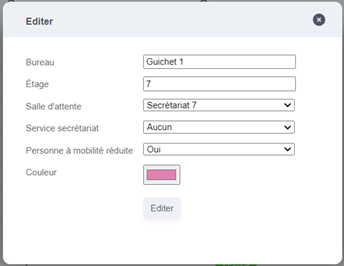
Depending on the state of the "PMR accessible desk" icon, you are informed about the accessibility of your desk for PMR patients.

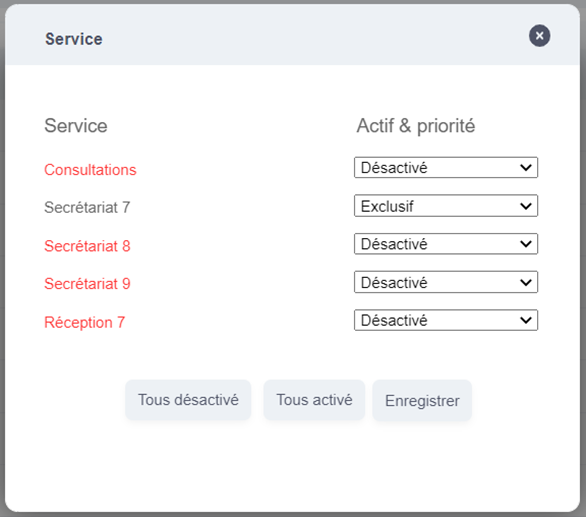
By clicking the "Service" icon, you can restrict or allow the services that can be called by each desk. Note that this authorization cannot override the restrictions linked to the agent present at the desk.

Change the desired permissions and then click "Save".
Finally, you can delete a desk by clicking "Delete".
