Service management
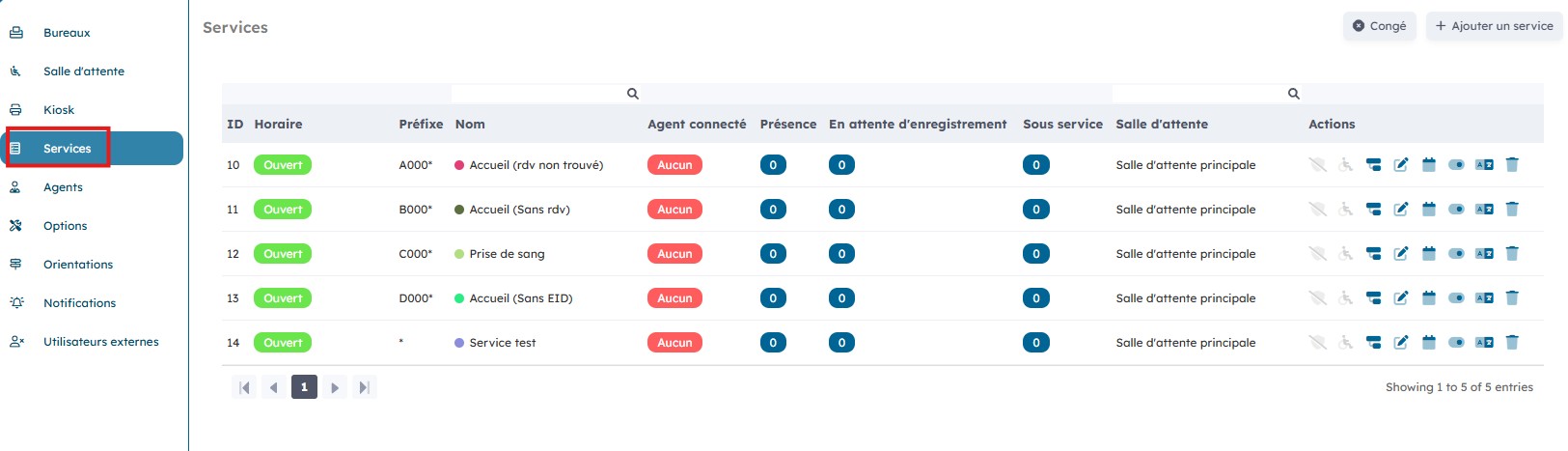
On the "Service" page you have an overview of the different services as well as the number of connected agents per service, the number of patients present, and those waiting to be registered.
1. Create a new service
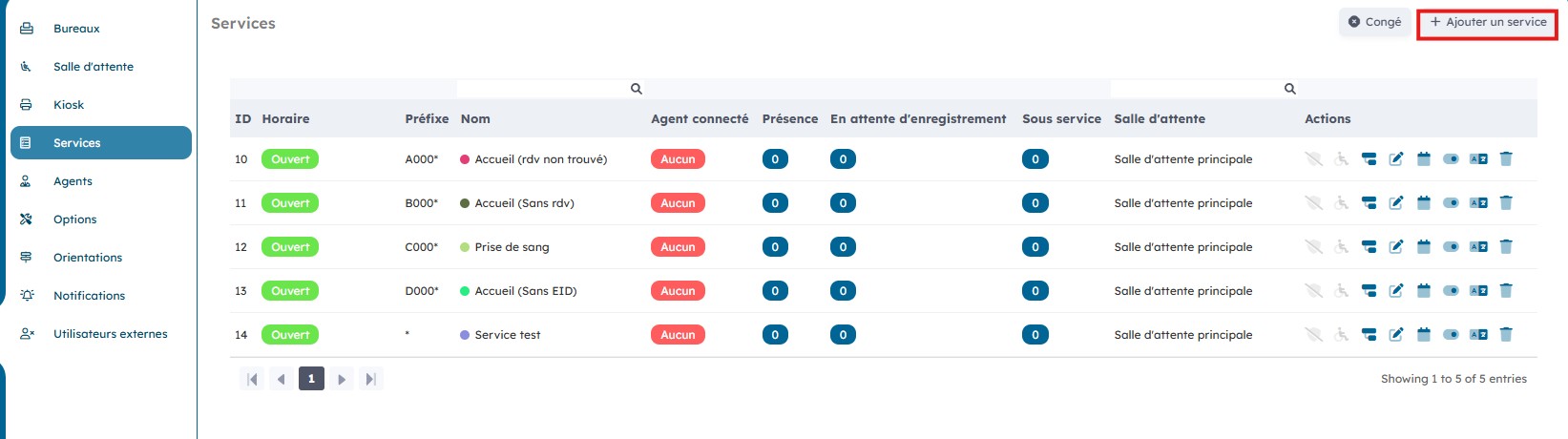
You can create a new service by clicking "Add a service".
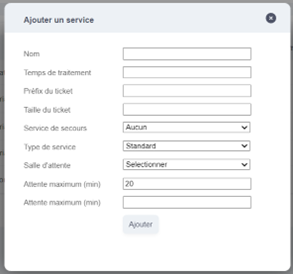
Enter all information related to the service and then click "Add" to create it.
2. Edit an existing service
You can manage the different services using the "Actions" icons.
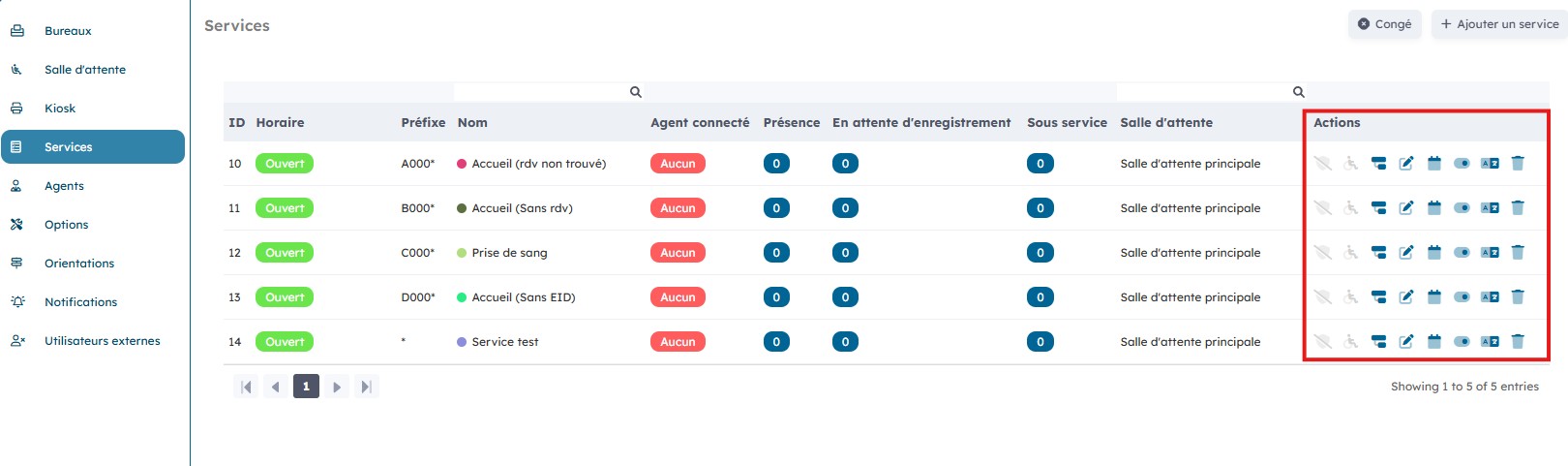
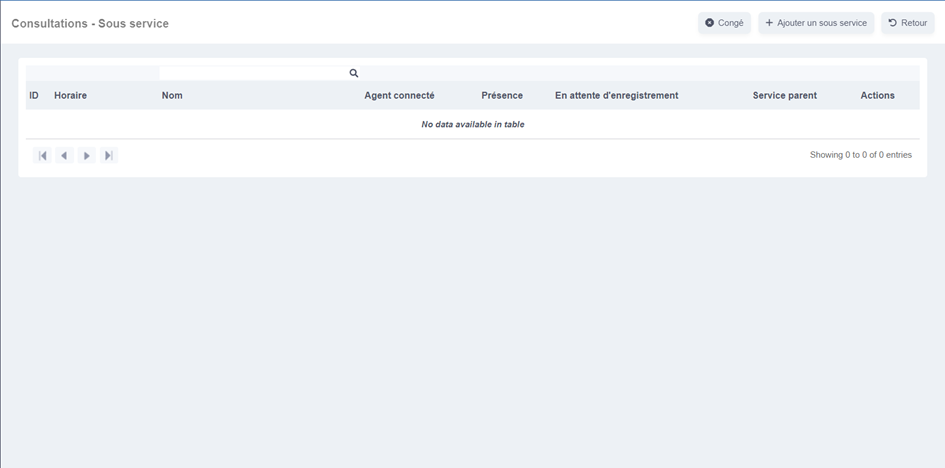
By clicking "Sub-service", you can enter a sub-service if needed.

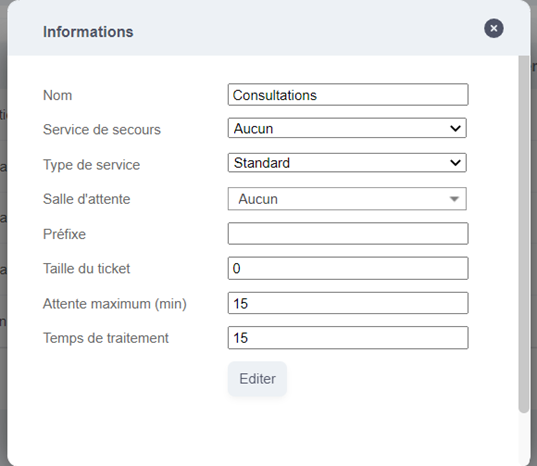
By clicking "Edit", you can modify the service information.

Change the desired information, then click "Edit".
By clicking "Schedule", you access the schedule linked to this service.

It is possible to edit the time slots of each day as well as the number of agents by clicking "Edit".

Modify the existing time slots, or add new ones by clicking "Add".
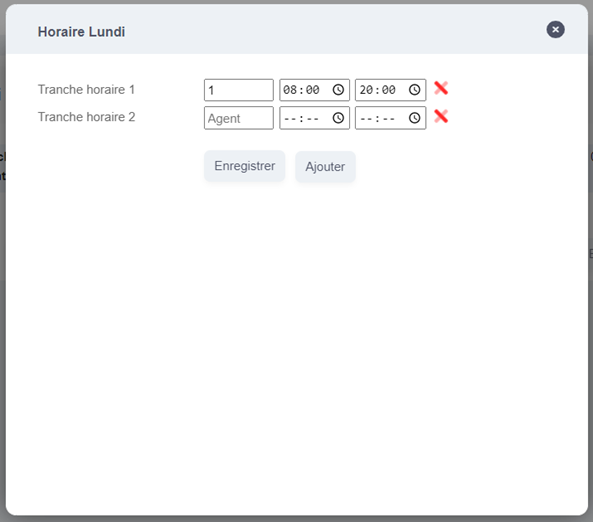
Then click "Save" to finalize your changes.
By clicking "Enable/disable", you can change the activation status of the service.

Finally, to delete a service, click "Delete".
