Waiting rooms
On the "Waiting room" page, you can create and manage waiting rooms.
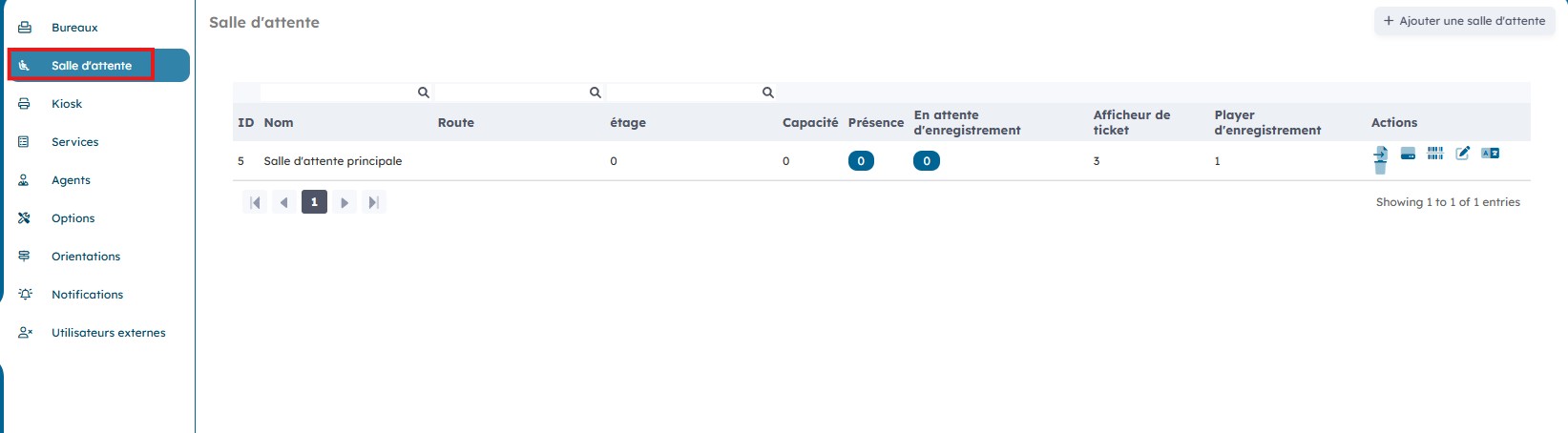
1. Create a new waiting room
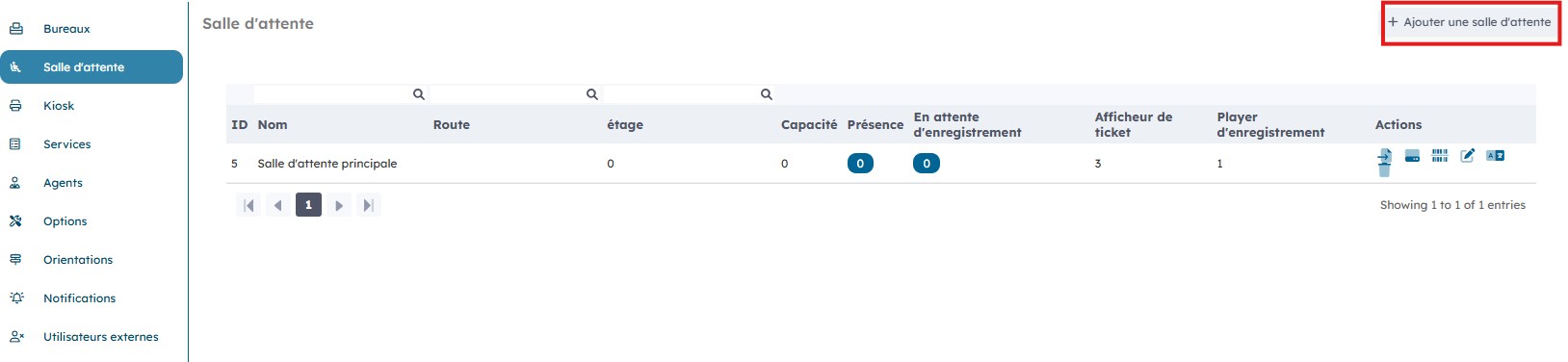
You can create a new waiting room by clicking "Add a waiting room".
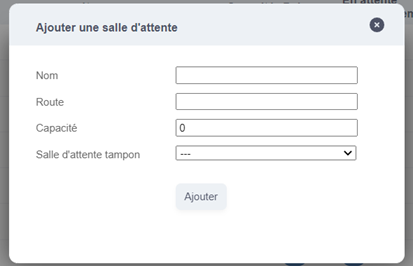
Enter the data for your waiting room and then click "Add".
2. Edit an existing waiting room
You can then edit, configure, and even delete the waiting rooms you created by clicking the "Actions" icons.
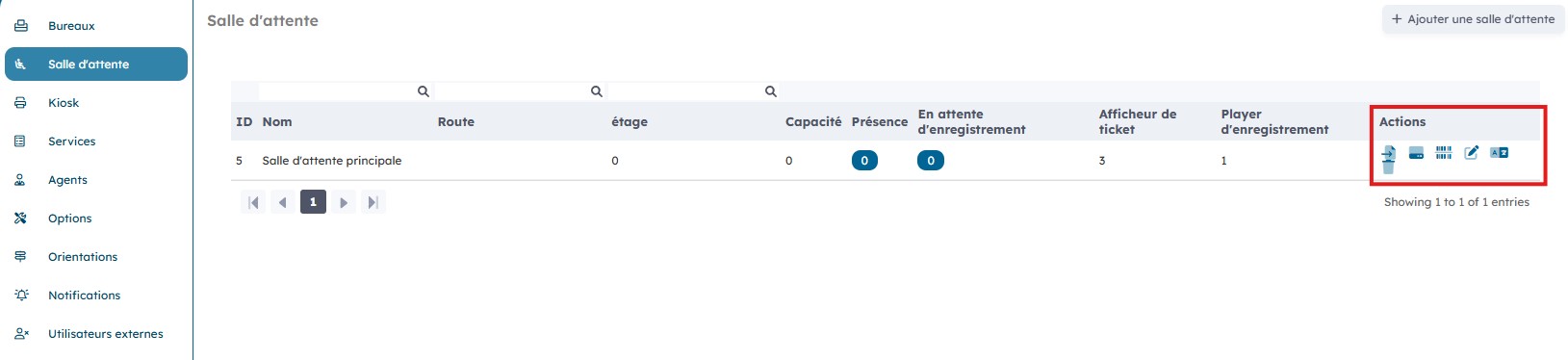
By clicking the "Screens" icon, you can access a window that gives you information on the status of each screen.

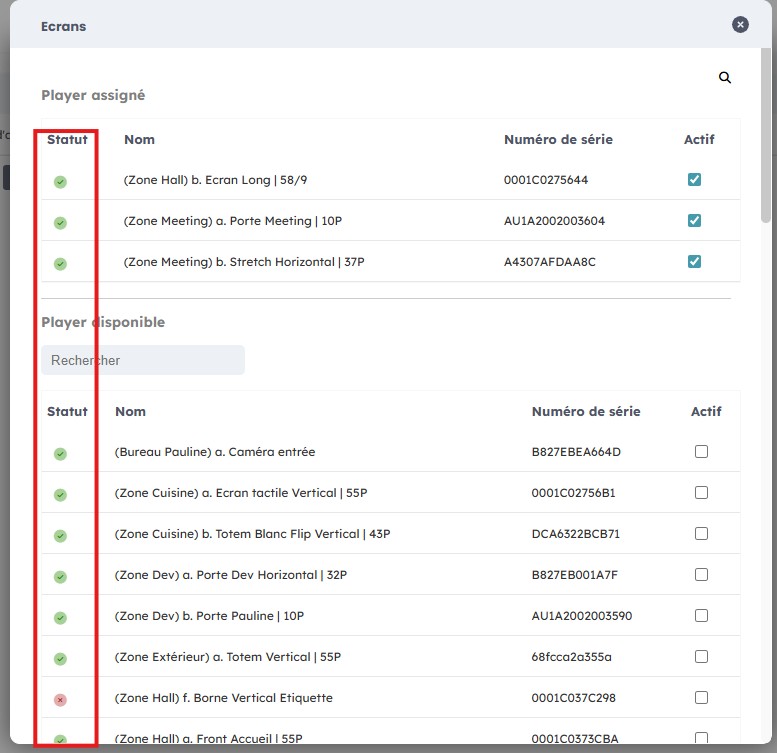
You can check or uncheck the screens to activate/deactivate them in a waiting room.
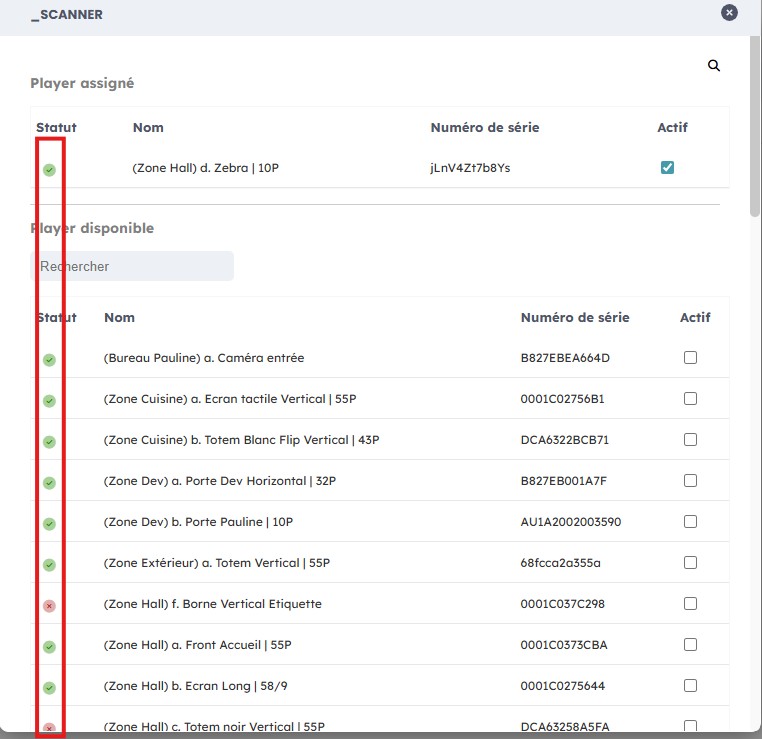
By clicking the "Scanner" icon, you can access a window that gives you information on the status of each scanner.

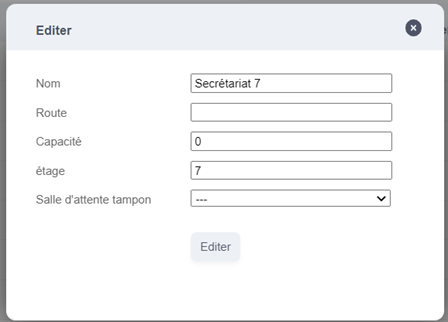
By clicking the "Edit" icon, you can modify the information linked to a waiting room that has already been created.

Then click "Edit".
By clicking the "Delete" icon, you can delete a waiting room that has already been created.
